
iCUE Scheduler
Windows, PowerShell + WPF · AI-assisted (Claude) · GitHub: iCUE-Scheduler
iCUE Scheduler switches your Corsair iCUE 5 profile and keyboard brightness by time of day. You might want bright lighting during the day and a dim profile at night. You set that up once as a list of time slots, and Windows Task Scheduler handles the switching. Nothing has to stay running in the background.
It's plain PowerShell with a WPF window, so there's nothing to install beyond what Windows already has. The UI comes in English and Korean.
What it does
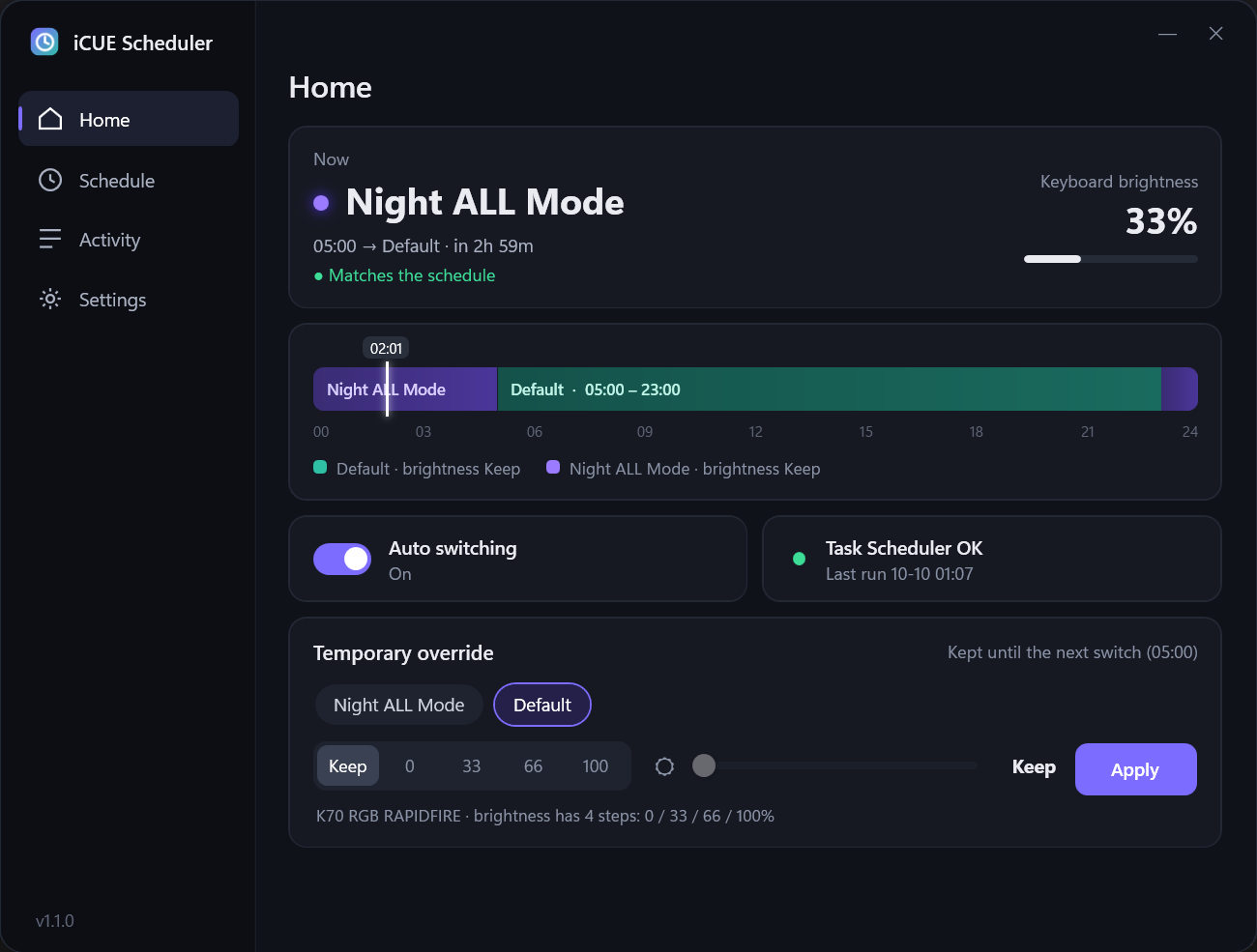
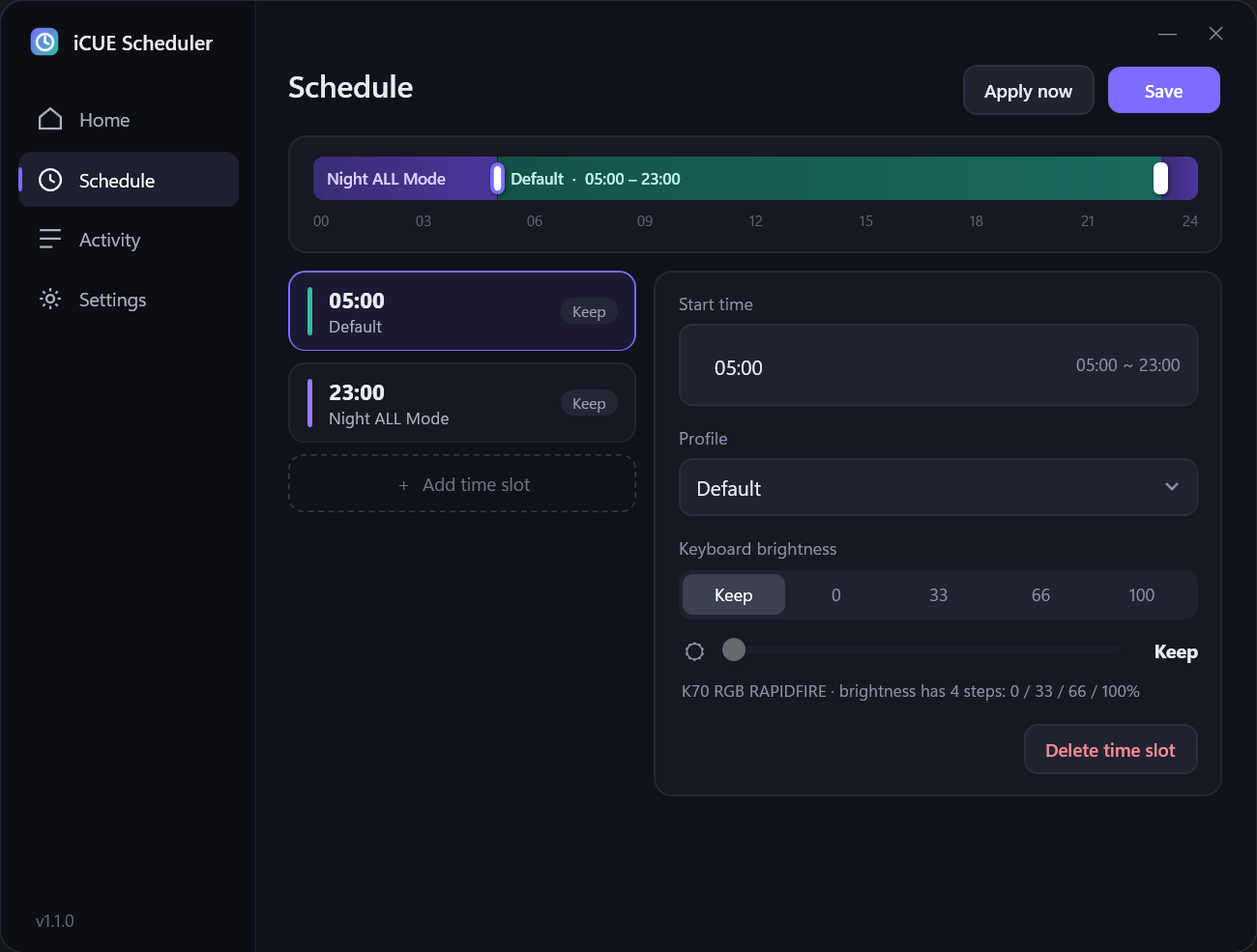
- Time slots. Each slot has a start time, an iCUE profile, and an optional keyboard brightness. A slot lasts until the next one starts, wrapping past midnight. With
07:00 Defaultand23:00 Night, Night runs from 23:00 to 07:00. - 24-hour timeline. The Home and Schedule tabs show which profile runs when, with a marker for the current time.
- Keyboard brightness. Keep, 0, 33, 66, or 100 %, plus a slider that snaps to the same steps.
- Temporary override. You can switch to another profile or brightness right now, and the schedule takes over again at the next slot.
- Leaves manual changes alone. Each slot is applied once. If you change something in iCUE yourself, it stays until the next slot starts.
- Catches up after logon or waking from sleep if a switch was missed.
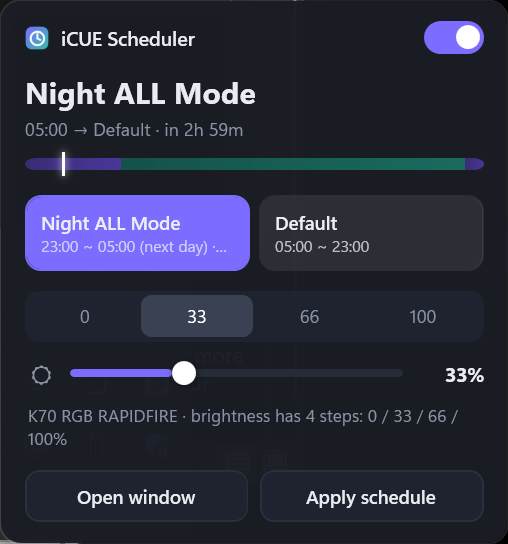
- Tray widget (optional). Left-click for a small panel with profile tiles, brightness, and a mini timeline. Right-click for a menu.
How it works
iCUE has no public API for changing the active profile, so every switch goes through the config file:
- Close iCUE.
- Set
defaultProfile(andBrightnessLevel, if the slot has one) in%APPDATA%\Corsair\CUE5\config.cuecfg. The previous file is saved asconfig.cuecfg.bakfirst. - Start iCUE again.
The scheduled task runs at every slot's start time, at logon, and on wake from sleep. It checks whether the current slot has already been applied and only switches if it hasn't. That one check is what makes both the catch-up and the "leave manual changes alone" behavior work.
Limitations
- Every switch restarts iCUE, so the lighting goes dark for a few seconds.
- Brightness only has four steps: 0, 33, 66, and 100 %. That's what iCUE stores for keyboards like the K70 RGB RAPIDFIRE. A request for 50 % ends up as 66 %, so the controls stick to the real steps.
- It edits iCUE's own settings file, which isn't documented. A future iCUE update could change that file and break the tool.
- Profile names have to match iCUE exactly. The app warns you when it can't find one.
Requirements
Windows 10 or 11, Corsair iCUE 5 (built against 5.51), and Windows PowerShell 5.1, which ships with Windows. Install steps are in the README.
This is an unofficial tool and isn't affiliated with or endorsed by Corsair. Apache License 2.0.